主题
上拉分页与延迟提货(三)
本页对应 上拉分页与延迟提货,共 6 段视频,约 52 分钟。
学习目标
- 能够说明延迟提货的业务触发条件与提交时机,并验证未延迟提货时可直接提货、进入延迟提货页时必须携带任务 ID。
- 能够通过页面参数获取任务 ID 与原定提货时间,将原定时间渲染到延迟提货页面,并验证参数缺失或渲染异常时可定位问题。
- 能够使用 uni-app 内置 picker 的时间选择与 change 事件获取用户选择的延迟时间,并结合原定日期拼接为可展示、可提交的完整时间字符串。
- 能够使用
v-model获取延迟原因,并通过组合式 API 的计算属性实时统计字数,验证输入字数展示与 50 字上限判断结果一致。 - 能够通过计算属性校验延迟时间满足“晚于原定时间且不超过 2 小时”,并验证超时、提前、合法三种选择下红色错误类名切换正确。
- 能够组合时间合法性与原因字数合法性控制提交按钮禁用状态,并验证任一项不合法时按钮不可提交、两项均合法时按钮可提交。
知识点
本节目标与业务背景
为什么需要:司机完成提货后,任务状态 status 会变成 2,这时任务已经不属于“待提货”,而进入“在途”。如果仍混在待提货列表里,司机就会重复看到已提货任务,也无法区分“已提货待交付”的任务。
怎么想:在途列表与待提货列表的数据结构基本一致,因此不需要新造一套列表逻辑,而是复用同一个任务列表接口,只把状态值传成 2。页面职责变成:展示在途任务、提供详情入口、提供“交付”入口、处理空列表。
怎么做:在 delivery.vue 中调用 taskApi.list(2),把返回的 data.items 渲染到列表,并用 isEmpty 控制“无在途货物”。
易错点:状态值不能传错;data.items 要做空值兜底;列表跳详情、交付跳转都必须带任务 id。转写稿里反复强调“先检查地址参数有没有 ID,没有 ID 肯定不对”,这个调试习惯同样适用于本节列表跳详情:跳转后先看 URL 是否带 id,再排查接口。
在途任务列表的实现
为什么需要:在途任务需要独立展示,并且每条任务要能进入详情、进入交付。
怎么想:列表接口与待提货相同,所以重点不在“重新请求”,而在“传对状态、渲染对字段、给对入口”。
怎么做:保留笔记代码如下:
vue
<!-- pages/task/components/delivery.vue -->
<script setup>
  import { ref, onMounted } from 'vue'
  import taskApi from '@/apis/task'

  // 在途任务列表
  const deliveryList = ref([])
  // 在途列任务列表是否为空
  const isEmpty = ref(false)

  // 生命周期(获取数据)
  onMounted(() => {
    getDeliveryList()
  })

  // 在途任务列表
  async function getDeliveryList() {
    const { code, data } = await taskApi.list(2)
    if (code !== 200) return uni.utils.toast('在途任务获取失败!')
    // 渲染数据
    deliveryList.value = data.items || []
    isEmpty.value = deliveryList.value.length === 0
  }
</script>
<template>
  <scroll-view scroll-y class="scroll-view">
    <view class="scroll-view-wrapper">
      <view
        v-for="delivery in deliveryList"
        :key="delivery.id"
        class="task-card"
      >
        <navigator
          hover-class="none"
          :url="`/subpkg_task/detail/index?id=${delivery.id}`"
        >
          <view class="header">
            <text class="no">任务编号: {{ delivery.transportTaskId }}</text>
          </view>
          <view class="body">
            <view class="timeline">
              <view class="line">{{ delivery.startAddress }}</view>
              <view class="line">{{ delivery.endAddress }}</view>
            </view>
          </view>
        </navigator>
        <view class="footer">
          <view class="label">到货时间</view>
          <view class="time">{{ delivery.planArrivalTime }}</view>
          <navigator
            hover-class="none"
            :url="`/subpkg_task/delivery/index?id=${delivery.id}`"
            class="action"
          >
            交付
          </navigator>

        </view>
      </view>
      <view v-if="isEmpty" class="task-blank">无在途货物</view>
    </view>
  </scroll-view>
</template>易错点:v-for 的 :key 要用任务唯一标识;空态判断要在赋值之后做;code !== 200 时直接提示并返回,避免继续渲染错误数据。转写稿中的调试顺序可以借用:先确认参数,再调接口,再看返回,再渲染页面;不要一上来就怀疑模板。
任务详情按状态展示提货信息
为什么需要:在途任务已经完成提货,详情页应展示提货时提交的照片,司机和后台才能核对凭证与货品。
怎么想:不是所有状态都显示提货信息,因此用 taskDetail.status >= 2 做条件渲染;照片分两类:cargoPictureList 是提货凭证,cargoPickUpPictureList 是提货商品照片,不能混用。
怎么做:保留笔记代码如下:
vue
<!-- subpkg_task/detail/index.vue -->
<script setup>
  //
</script>
<template>
  <view class="page-container">
		...
    <scroll-view scroll-y class="task-detail">
      <view class="scroll-view-wrapper">
				...
        <view v-if="taskDetail.status >= 2" class="panel pickup-info">
          <view class="panel-title">提货信息</view>
          <view class="label">提货凭证</view>
          <view class="pictures">
            <image
              v-for="receipt in taskDetail.cargoPictureList"
              :key="receipt.url"
              class="picture"
              :src="receipt.url"
            />
          </view>
          <view class="label">货品照片</view>
          <view class="pictures">
            <image
              v-for="goods in taskDetail.cargoPickUpPictureList"
              :key="goods.url"
              class="picture"
              :src="goods.url"
            />
          </view>
        </view>
				...
      </view>
    </scroll-view>
		...
  </view>
</template>任务详情中的数据:
cargoPictureList提供凭证的照片cargoPickUpPictureList提货商品的照片
易错点:条件要用 status >= 2,不要写成只等于 2,否则后续状态可能漏展示;两个照片数组不要写反;v-for 的 :key 使用接口返回的 url,若接口存在重复 URL,需要按实际数据调整唯一键;详情页要先确认路由参数 id 是否存在,再请求详情。转写稿中的延迟提货细节不属于本节在途实现,不混入;本节只借用其“先查参数、再调接口、按状态条件渲染”的调试思路。
小结
本节核心是:提货完成后 status 变为 2,在途列表复用任务列表接口并传入状态 2;列表负责展示、详情跳转、交付跳转和空态;详情页在 status >= 2 时展示提货凭证与货品照片。实现时先确认状态值和 id 参数,再处理接口返回与空值,最后检查两个照片字段和条件渲染。
1.4.1 异常时间
为什么需要:司机在运输途中遇到突发状况,可能导致到达时间延迟,必须把异常发生时间及时上报,管理端才能据此判断和调度。
怎么想:异常时间用 uni-datetime-picker 选择,外层用 uni-list-item 展示;选择结果通过 v-model 绑定到 timePicker,再用计算属性 exceptionTime 做“未选择时显示请选择”的回显。
怎么做:
vue
<!-- subpkg_task/except/index.vue -->
<script setup>
import { ref, computed } from 'vue'

const timePicker = ref('')
const exceptionTime = computed(() => {
  return timePicker.value || '请选择'
})
</script>

<template>
  <uni-list :border="false">
    <uni-list-item show-arrow title="异常时间">
      <template v-slot:footer>
        <uni-datetime-picker v-model="timePicker">
          <view class="picker-value">{{ exceptionTime }}</view>
        </uni-datetime-picker>
      </template>
    </uni-list-item>
  </uni-list>
</template>易错点:v-model 初值要设空串;计算属性必须 return;模板里不要漏 .value。转写稿中调试原生 picker 时,是通过 change 事件对象的 ev.detail.value 取时间;本模块用封装组件时优先用 v-model,不要两套取值方式混用。若回显不对,先打印 timePicker.value 确认选择结果是否写入。
1.4.2 上报位置
为什么需要:只报“异常”不够,管理端要知道异常发生在哪里,因此要记录上报位置。
怎么想:调用 uni.chooseLocation 打开地图选点,取返回的 address 回显。调用前要准备地图服务平台 key,并处理平台兼容性。
| 地图服务商 | App | H5 | 小程序 |
|---|---|---|---|
| 高德 | √ | √ | |
| 仅nvue页面 | √ | ||
| 腾讯 | √ | √ |
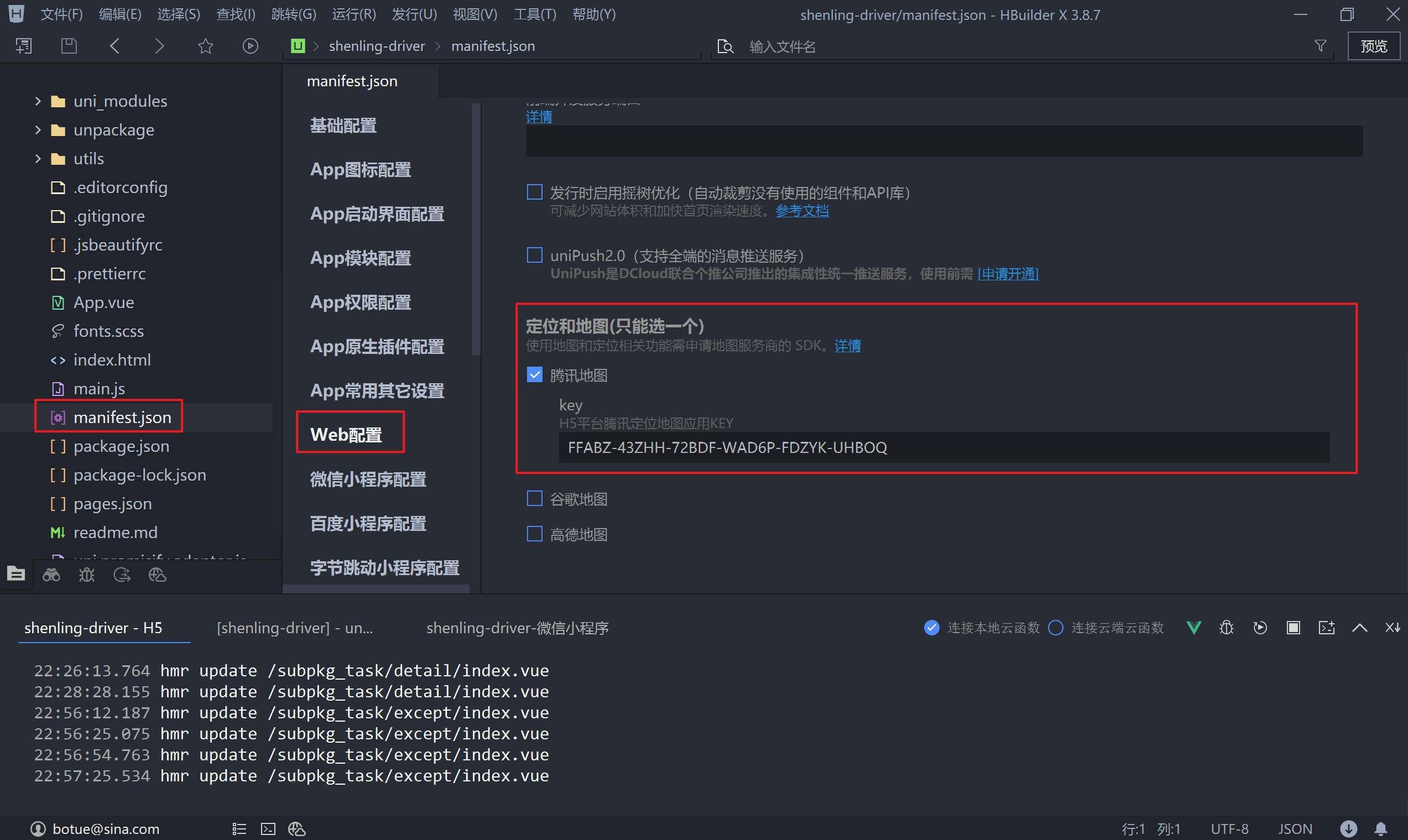
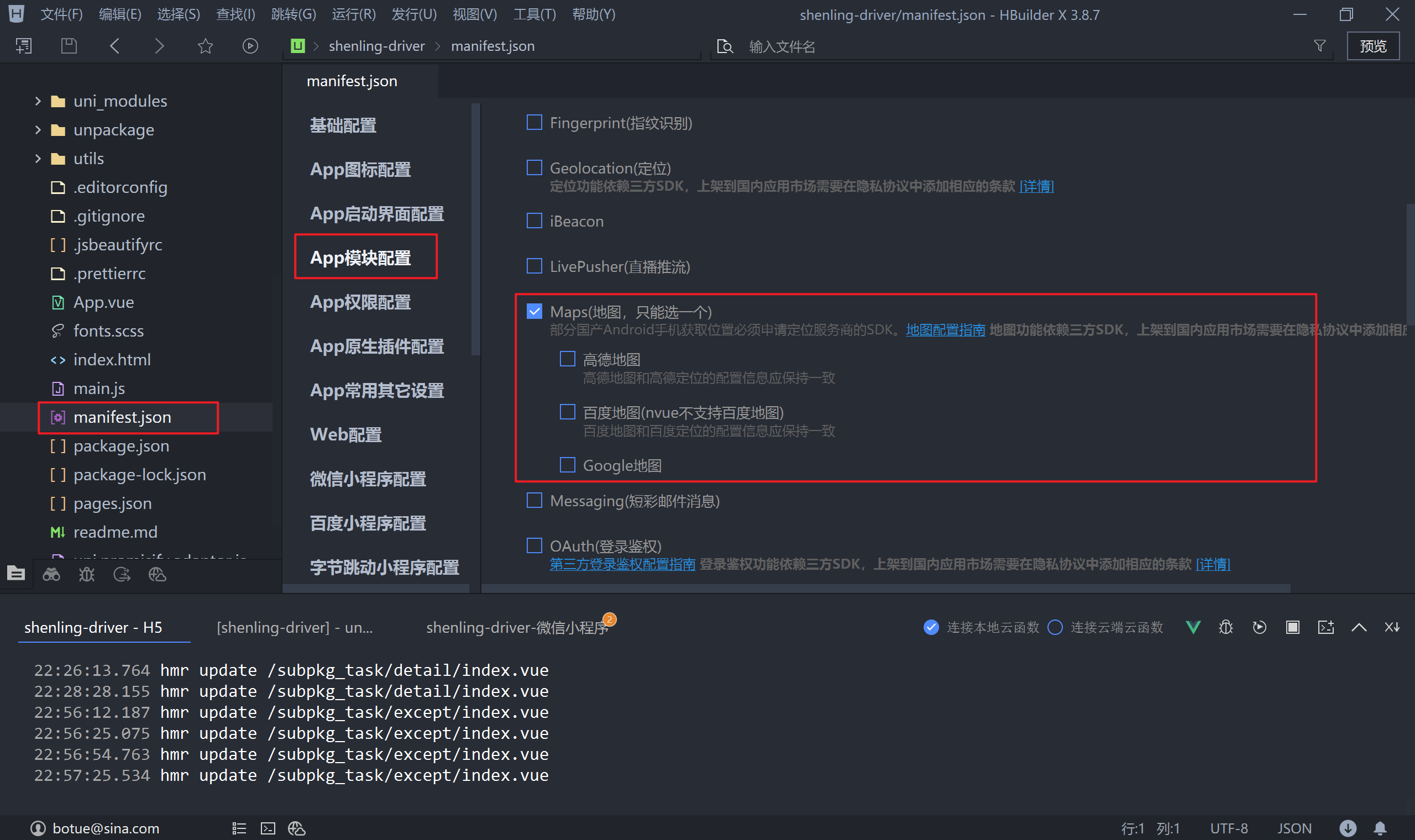
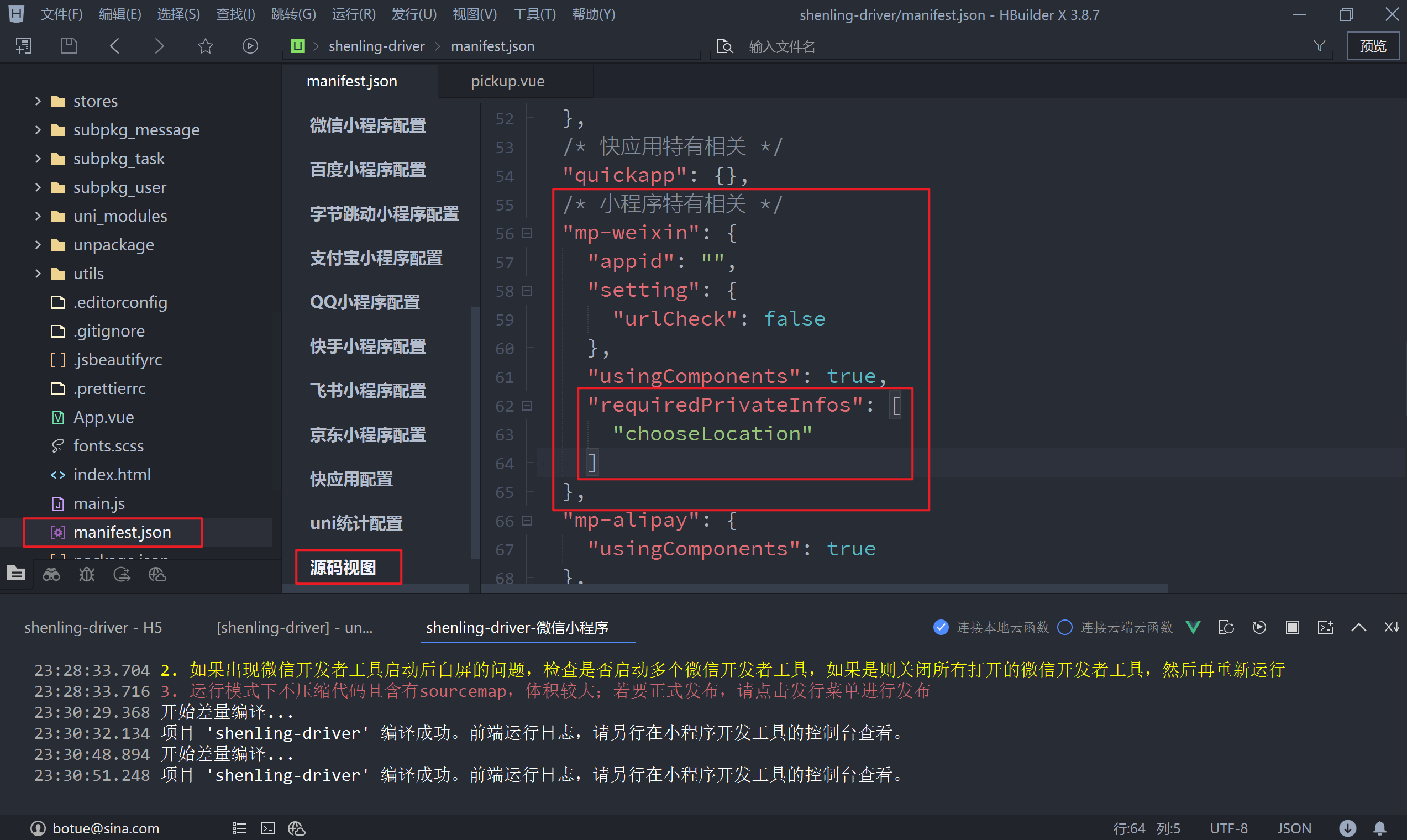
微信小程序还必须在 manifest.json 源码视图的 mp-weixin 中配置 requiredPrivateInfos,否则 wx.chooseLocation 可能调用失败。
怎么做:
vue
<script setup>
import { ref } from 'vue'

const exceptionPlace = ref('')
async function onLocationChoose() {
  try {
    const { address } = await uni.chooseLocation({})
    exceptionPlace.value = address
  } catch (err) {}
}
</script>

<template>
  <uni-list-item
    show-arrow
    clickable
    ellipsis="1"
    @click="onLocationChoose"
    title="上报位置"
    :right-text="exceptionPlace || '请选择'"
  />
</template>易错点:key 未申请、requiredPrivateInfos 未配置、平台不兼容都会导致调用失败;catch 中至少要保留错误处理入口,便于排查用户取消选点或权限问题。
1.4.3 异常类型
为什么需要:异常类型需要结构化记录,且允许多选,方便管理端统计与处理。
怎么想:用 uni-popup 做底部弹层,内部用 checkbox-group 多选。笔记原始写法用 tempException.push(ev.detail.value) 有 bug:取消勾选不会从数组移除、重复操作会累积、关闭后勾选状态不同步。修复思路是把 exceptionTypes 改成 { text, checked } 对象数组,change 时按索引切换 checked,点击确定时过滤出 checked 的项,map 出 text,再用 | 拼接。
怎么做:
vue
<script setup>
import { ref, reactive } from 'vue'

const popup = ref(null)
const exceptionTypes = reactive([
  { text: '发动机启动困难', checked: true },
  { text: '不着车,漏油', checked: false },
  { text: '照明失灵', checked: false },
  { text: '排烟异常、温度异常', checked: false },
  { text: '其他问题', checked: false },
])
const exceptionType = ref('')

function onCheckboxChange(index) {
  exceptionTypes[index].checked = !exceptionTypes[index].checked
}

function onPopupClose() {
  popup.value.close()
  exceptionType.value = exceptionTypes
    .filter((type) => type.checked)
    .map((type) => type.text)
    .join('|')
}
</script>

<template>
  <uni-popup ref="popup" type="bottom">
    <uni-list class="popup-action-sheet">
      <uni-list-item
        v-for="(exceptionType, index) in exceptionTypes"
        :key="exceptionType.text"
        :title="exceptionType.text"
      >
        <template v-slot:footer>
          <checkbox-group @change="onCheckboxChange(index)" class="checkbox">
            <checkbox :checked="exceptionType.checked" color="#EF4F3F" />
          </checkbox-group>
        </template>
      </uni-list-item>
      <uni-list-item>
        <template v-slot:body>
          <button @click="onPopupClose" class="button">确定</button>
        </template>
      </uni-list-item>
    </uni-list>
  </uni-popup>
</template>易错点:change 必须监听在 checkbox-group 上;不要用 push 累积临时数组;checkbox 用 :checked 绑定状态;关闭弹层后再拼接回显,避免用户未点确定就更新。
1.4.4 异常描述
为什么需要:类型只能说明大类,具体原因需要文字补充。
怎么想:用 v-model 绑定 textarea,用计算属性统计 length,实时显示 字数/50。转写稿中同类字数统计也是用计算属性,边输入边更新;注意计算属性要有返回值。
怎么做:
vue
<script setup>
import { ref, computed } from 'vue'

const exceptionDescribe = ref('')
const wordsCount = computed(() => exceptionDescribe.value.length)
</script>

<template>
  <uni-list-item direction="column" title="异常描述">
    <template v-slot:footer>
      <view class="textarea-wrapper">
        <textarea v-model="exceptionDescribe" class="textarea" placeholder="请输入异常描述" />
        <view class="words-count">{{ wordsCount }}/50</view>
      </view>
    </template>
  </uni-list-item>
</template>易错点:字数限制为 50,提交前要校验;computed 中漏 .value 会统计错误;不要忘记 return。
1.4.5 现场照片
为什么需要:照片能证明现场情况,便于管理端核实。
怎么想:用 uni-file-picker 上传,v-model 得到文件数组;提交接口只需要 url,所以用计算属性二次处理为 { url }。
怎么做:
vue
<script setup>
import { ref, computed } from 'vue'

const goodsPictrues = ref([])
const exceptionImagesList = computed(() => {
  return goodsPictrues.value.map(({ url }) => ({ url }))
})
</script>

<template>
  <uni-list class="upload-picture">
    <uni-list-item direction="column" title="上传图片(最多3张)">
      <template v-slot:footer>
        <uni-file-picker v-model="goodsPictrues" file-extname="jpg,webp,gif,png" limit="3" />
      </template>
    </uni-list-item>
  </uni-list>
</template>易错点:limit 控制最多 3 张;提交前必须转成接口需要的 url 结构;变量名 goodsPictrues 是笔记原拼写,改动时需同步。
1.4.6 提交数据
为什么需要:前面采集的数据最终要提交服务端,并回到任务列表。
怎么想:先封装 taskApi.except;页面 onLoad 取 transportTaskId;提交时组装 formData,根据 code 判断成功,成功后 reLaunch 到任务列表。转写稿中调试表单时强调先确认地址参数、再取数据;这里同样要先确认 transportTaskId 是否存在。
怎么做:
javascript
// apis/task.js
import { uniFetch } from './uni-fetch'

export default {
  except(data) {
    return uniFetch.post('/driver/tasks/reportException', data)
  }
}vue
<script setup>
import { ref } from 'vue'
import { onLoad } from '@dcloudio/uni-app'
import taskApi from '@/apis/task'

const transportTaskId = ref('')
onLoad((query) => {
  transportTaskId.value = query.transportTaskId
})

async function onFormSubmit() {
  const formData = {
    transportTaskId: transportTaskId.value,
    exceptionTime: exceptionTime.value,
    exceptionPlace: exceptionPlace.value,
    exceptionType: exceptionType.value,
    exceptionDescribe: exceptionDescribe.value,
    exceptionImagesList: exceptionImagesList.value,
  }
  const { code } = await taskApi.except(formData)
  if (code !== 200) return uni.utils.toast('上报数据失败!')
  uni.reLaunch({ url: '/pages/task/index' })
}
</script>

<template>
  <view class="fixbar">
    <button @click="onFormSubmit" class="button disable">提交</button>
  </view>
</template>易错点:transportTaskId 不能丢;图片数组结构要符合接口;code !== 200 要提示;成功后用 reLaunch 清栈回任务列表。
1.4.7 任务详情
为什么需要:司机上报后,任务详情要能看到异常信息,形成闭环。
怎么想:异常数据可能有也可能没有,所以用 v-if="taskDetail.exceptionList" 判断;有数据时循环渲染上报时间、异常类型、处理结果。
怎么做:
vue
<template>
  <view v-if="taskDetail.exceptionList" class="except-info panel">
    <view class="panel-title">异常信息</view>
    <view
      v-for="exception in taskDetail.exceptionList"
      :key="exception.exceptionType"
      class="info-list"
    >
      <view class="info-list-item">
        <text class="label">上报时间</text>
        <text class="value">{{ exception.exceptionTime }}</text>
      </view>
      <view class="info-list-item">
        <text class="label">异常类型</text>
        <text class="value">{{ exception.exceptionType }}</text>
      </view>
      <view class="info-list-item">
        <text class="label">处理结果</text>
        <text class="value">{{ exception.handleResult }}</text>
      </view>
    </view>
  </view>
</template>易错点:没有异常数据时不能硬渲染,否则会报错;字段名要和接口一致;exceptionType 可能是 | 拼接字符串,展示时按原样输出即可。
代码示例
示例一:在途任务列表(pages/task/components/delivery.vue)
vue
<!-- pages/task/components/delivery.vue -->
<script setup>
  import { ref, onMounted } from 'vue'
  import taskApi from '@/apis/task'

  // 在途任务列表
  const deliveryList = ref([])
  // 在途列任务列表是否为空
  const isEmpty = ref(false)

  // 生命周期(获取数据)
  onMounted(() => {
    getDeliveryList()
  })

  // 在途任务列表
  async function getDeliveryList() {
    const { code, data } = await taskApi.list(2)
    if (code !== 200) return uni.utils.toast('在途任务获取失败!')
    // 渲染数据
    deliveryList.value = data.items || []
    isEmpty.value = deliveryList.value.length === 0
  }
</script>

<template>
  <scroll-view scroll-y class="scroll-view">
    <view class="scroll-view-wrapper">
      <view
        v-for="delivery in deliveryList"
        :key="delivery.id"
        class="task-card"
      >
        <navigator
          hover-class="none"
          :url="`/subpkg_task/detail/index?id=${delivery.id}`"
        >
          <view class="header">
            <text class="no">任务编号: {{ delivery.transportTaskId }}</text>
          </view>
          <view class="body">
            <view class="timeline">
              <view class="line">{{ delivery.startAddress }}</view>
              <view class="line">{{ delivery.endAddress }}</view>
            </view>
          </view>
        </navigator>
        <view class="footer">
          <view class="label">到货时间</view>
          <view class="time">{{ delivery.planArrivalTime }}</view>
          <navigator
            hover-class="none"
            :url="`/subpkg_task/delivery/index?id=${delivery.id}`"
            class="action"
          >
            交付
          </navigator>
        </view>
      </view>
      <view v-if="isEmpty" class="task-blank">无在途货物</view>
    </view>
  </scroll-view>
</template>关键行与易错点
taskApi.list(2):在途列表与待提货列表共用同一个接口,唯一的区别是传入的状态值status = 2(司机完成提货后状态变为 2),不要另写一个接口。deliveryList.value = data.items || []:接口没有数据时data.items可能为undefined,用|| []兜底,否则后面v-for和length都会报错。isEmpty.value = deliveryList.value.length === 0:空态判断必须基于赋值之后的数组,顺序颠倒会永远拿到旧值。if (code !== 200) return uni.utils.toast(...):失败要提前return,避免把错误响应当成数据渲染。:key="delivery.id"用delivery.id(不是transportTaskId),跳转详情页时url里带的是同一个id。- 卡片里有两个
navigator:整体点进详情,底部“交付”按钮进交付页,注意hover-class="none"去掉默认点击态。
示例二:异常上报(subpkg_task/except/index.vue)
vue
<!-- subpkg_task/except/index.vue -->
<script setup>
  import { ref, computed, reactive } from 'vue'
  import { onLoad } from '@dcloudio/uni-app'
  import taskApi from '@/apis/task'

  // 组件 ref
  const popup = ref(null)

  // 异常日期
  const timePicker = ref('')
  // 获取异常时间
  const exceptionTime = computed(() => {
    return timePicker.value || '请选择'
  })

  // 上报位置数据
  const exceptionPlace = ref('')
  // 打开地图,选择位置
  async function onLocationChoose() {
    try {
      // 获取位置
      const { address } = await uni.chooseLocation({})
      exceptionPlace.value = address
    } catch (err) {}
  }

  // 定义 popup 组件展示的数据
  const exceptionTypes = reactive([
    { text: '发动机启动困难', checked: true },
    { text: '不着车,漏油', checked: false },
    { text: '照明失灵', checked: false },
    { text: '排烟异常、温度异常', checked: false },
    { text: '其他问题', checked: false },
  ])

  // 异常的类型
  const exceptionType = ref('')

  // 打开弹层
  function onPopupOpen() {
    popup.value.open()
  }

  // 监听用户选择类型
  function onCheckboxChange(index) {
    // 切换选中状态
    exceptionTypes[index].checked = !exceptionTypes[index].checked
  }

  // 关闭弹层
  function onPopupClose() {
    popup.value.close()

    // 获取用户选择的类型并回显到页面,即将 checked 属性为 true 单元取出
    exceptionType.value = exceptionTypes
      .filter((type) => {
        return type.checked // 过滤出选中的类型
      })
      .map((type) => {
        return type.text // 只保留 text 属性
      })
      .join('|') // 将选择的类型用 | 拼接并回显
  }

  // 异常描述
  const exceptionDescribe = ref('')
  // 异常描述字数统计
  const wordsCount = computed(() => {
    return exceptionDescribe.value.length
  })

  // 现场照片
  const goodsPictrues = ref([])
  // 数据二次处理,只保留 url 属性
  const exceptionImagesList = computed(() => {
    return goodsPictrues.value.map(({ url }) => {
      return { url }
    })
  })

  // 运输任务ID
  const transportTaskId = ref('')
  onLoad((query) => {
    transportTaskId.value = query.transportTaskId
  })

  // 提交数据
  async function onFormSubmit() {
    // 待提交的数据
    const formData = {
      transportTaskId: transportTaskId.value,
      exceptionTime: exceptionTime.value,
      exceptionPlace: exceptionPlace.value,
      exceptionType: exceptionType.value,
      exceptionDescribe: exceptionDescribe.value,
      exceptionImagesList: exceptionImagesList.value,
    }
    const { code } = await taskApi.except(formData)
    // 检测接口是否调用成功
    if (code !== 200) return uni.utils.toast('上报数据失败!')
    // 跳转到任务列表页面
    uni.reLaunch({ url: '/pages/task/index' })
  }
</script>

<template>
  <view class="page-container">
    <scroll-view class="scroll-view" scroll-y>
      <view class="scroll-view-wrapper">
        <uni-list :border="false">
          <uni-list-item show-arrow title="异常时间">
            <template v-slot:footer>
              <uni-datetime-picker v-model="timePicker">
                <view class="picker-value">{{ exceptionTime }}</view>
              </uni-datetime-picker>
            </template>
          </uni-list-item>

          <uni-list-item
            show-arrow
            clickable
            ellipsis="1"
            @click="onLocationChoose"
            title="上报位置"
            :right-text="exceptionPlace || '请选择'"
          />

          <uni-list-item
            show-arrow
            clickable
            @click="onPopupOpen"
            title="异常类型"
            :right-text="exceptionType || '请选择'"
          />

          <uni-list-item direction="column" title="异常描述">
            <template v-slot:footer>
              <view class="textarea-wrapper">
                <textarea
                  v-model="exceptionDescribe"
                  class="textarea"
                  placeholder="请输入异常描述"
                />
                <view class="words-count">{{ wordsCount }}/50</view>
              </view>
            </template>
          </uni-list-item>
        </uni-list>

        <uni-list class="upload-picture">
          <uni-list-item direction="column" title="上传图片(最多3张)">
            <template v-slot:footer>
              <uni-file-picker
                v-model="goodsPictrues"
                file-extname="jpg,webp,gif,png"
                limit="3"
              ></uni-file-picker>
            </template>
          </uni-list-item>
        </uni-list>
      </view>
    </scroll-view>

    <view class="fixbar">
      <button @click="onFormSubmit" class="button">提交</button>
    </view>

    <uni-popup ref="popup" type="bottom">
      <uni-list class="popup-action-sheet">
        <uni-list-item
          v-for="(exceptionType, index) in exceptionTypes"
          :key="exceptionType.text"
          :title="exceptionType.text"
        >
          <template v-slot:footer>
            <checkbox-group @change="onCheckboxChange(index)" class="checkbox">
              <checkbox :checked="exceptionType.checked" color="#EF4F3F" />
            </checkbox-group>
          </template>
        </uni-list-item>
        <uni-list-item>
          <template v-slot:body>
            <button @click="onPopupClose" class="button">确定</button>
          </template>
        </uni-list-item>
      </uni-list>
    </uni-popup>
  </view>
</template>关键行与易错点
- 异常时间:
uni-datetime-picker必须写在uni-list-item的v-slot:footer插槽里,v-model绑timePicker;页面回显用计算属性exceptionTime,没选时显示“请选择”——不能把“请选择”直接当值提交,这是回显用的。 - 上报位置:
uni.chooseLocation在微信小程序必须先在manifest.json源码视图里配置requiredPrivateInfos,并申请腾讯位置服务 key,否则调用直接失败;用户点取消会走catch,所以必须try/catch包裹,否则控制台报未捕获异常。 - 异常类型(本节重点修复的 bug):原写法把
ev.detail.value往tempException里push,取消勾选时不会从数组移除,导致回显错误。修复后把数据结构改成{ text, checked },用onCheckboxChange(index)手动切换checked,checkbox只负责:checked显示,最终用filter → map → join('|')拼字符串。 @change="onCheckboxChange(index)"是在模板里把下标传进去,函数里不读ev.detail.value;checkbox-group的change事件仍要监听在checkbox-group上(不是checkbox)。- 易错:
v-for="(exceptionType, index) in exceptionTypes"的变量名与外层const exceptionType = ref('')同名,作用域内会遮蔽,读起来极易搞混,建议改成type。 popup.value.open()/popup.value.close():必须先在模板上写ref="popup",且popup初始为ref(null)。- 异常描述:
v-model取内容,wordsCount计算属性实时统计长度(/50只是显示,真正的字数校验在提交前做)。 - 现场照片:
uni-file-picker的v-model拿到的是带url/name/...的对象数组,提交前用计算属性exceptionImagesList只保留{ url },接口要的就是这个结构。 - 提交:
transportTaskId通过onLoad的query.transportTaskId取,进入页面时务必确认地址上带了这个参数;成功后uni.reLaunch回任务列表(用reLaunch而不是navigateTo,避免页面栈残留)。
示例三:任务详情中的提货信息与异常信息(subpkg_task/detail/index.vue 模板部分)
vue
<!-- subpkg_task/detail/index.vue -->
<template>
  <view class="page-container">
    <scroll-view scroll-y class="task-detail">
      <view class="scroll-view-wrapper">
        <!-- 在途及之后的状态才展示提货信息(status >= 2 表示已提货) -->
        <view v-if="taskDetail.status >= 2" class="panel pickup-info">
          <view class="panel-title">提货信息</view>
          <view class="label">提货凭证</view>
          <view class="pictures">
            <image
              v-for="receipt in taskDetail.cargoPictureList"
              :key="receipt.url"
              class="picture"
              :src="receipt.url"
            />
          </view>
          <view class="label">货品照片</view>
          <view class="pictures">
            <image
              v-for="goods in taskDetail.cargoPickUpPictureList"
              :key="goods.url"
              class="picture"
              :src="goods.url"
            />
          </view>
        </view>

        <!-- 异常信息:有上报才展示 -->
        <view v-if="taskDetail.exceptionList" class="except-info panel">
          <view class="panel-title">异常信息</view>
          <view
            v-for="exception in taskDetail.exceptionList"
            :key="exception.exceptionType"
            class="info-list"
          >
            <view class="info-list-item">
              <text class="label">上报时间</text>
              <text class="value">{{ exception.exceptionTime }}</text>
            </view>
            <view class="info-list-item">
              <text class="label">异常类型</text>
              <text class="value">{{ exception.exceptionType }}</text>
            </view>
            <view class="info-list-item">
              <text class="label">处理结果</text>
              <text class="value">{{ exception.handleResult }}</text>
            </view>
          </view>
        </view>
      </view>
    </scroll-view>
  </view>
</template>关键行与易错点
v-if="taskDetail.status >= 2":提货信息只在在途及之后的状态展示,status小于 2(待提货)时页面上不该出现提货凭证和货品照片。cargoPictureList是提货凭证照片,cargoPickUpPictureList是货品照片,两个字段名很像,别写反。v-if="taskDetail.exceptionList":异常数据可能有也可能没有,渲染前必须做条件判断,否则接口不返回该字段时v-for会报错。:key="receipt.url"/:key="goods.url"用图片地址作 key;异常列表的:key="exception.exceptionType"用的是异常类型,同一任务有多条异常时要注意 key 的唯一性。- 三处字段对应关系:
exceptionTime(上报时间)、exceptionType(异常类型,多个用|拼接后的字符串)、handleResult(处理结果)。 - 说明:本节笔记只提供了该页面的模板片段,
taskDetail由详情接口返回,<script setup>部分本节未涉及,故此处只保留模板结构。
常见错误
现象:延迟时间只显示时分,或提交后后端报错。
原因:只取了 picker 的detail.value,没有拼原定提货日期;或提交时带上了秒。
修法:用原定时间拆出日期,与用户选择的时间拼接;展示格式和提交格式分开处理,提交前确认不带秒。现象:异常类型多选后取消勾选无效,或重复选项越来越多。
原因:临时数组只push不覆盖/不移除,未把选中状态做成受控数据。
修法:改用exceptionTypes[index].checked维护选中状态,确认时filter + map + join;或直接用change返回的当前选中数组覆盖临时数组。现象:校验结果恒为
false,红字一直显示,提交按钮一直不可点。
原因:script中访问ref忘记.value,或computed中漏写return。
修法:逐项检查computed的return和ref.value,把按钮可用性统一收敛到enableSubmit计算属性。现象:异常描述为空时按钮可点,或刚好 50 字时被判定不合法。
原因:字数边界写成开区间,如> 0 && < 50,初始空值也被误判。
修法:合法条件应为length > 0 && length <= 50;不合法条件取反,并单独测试 0、1、50、51 四个边界。现象:
uni.chooseLocation调用失败或无响应。
原因:未配置地图服务 key,或微信小程序未在manifest.json源码视图配置requiredPrivateInfos。
修法:先检查 key、平台配置和requiredPrivateInfos,再排查真机/开发者工具兼容性。现象:进入延迟提货页后原定时间不显示,或提交时
transportTaskId为空。
原因:详情页跳转时只传了id,未传原定提货时间;onLoad未接收并初始化。
修法:跳转 URL 同时携带任务 ID 与原定时间,onLoad中接收后写入对应ref,提交前打印表单数据自检。
练习
- 给延迟提货页补一组边界测试:分别输入 0 字、1 字、50 字、51 字,修正字数校验和按钮禁用逻辑。
- 复现“异常类型取消勾选无效”的 bug,用受控
checked方案重写多选逻辑,并保证确认后回显用|拼接。 - 将延迟时间校验改造成独立
computed,要求同时校验“晚于原定时间”和“不超过 2 小时”,并说明每个条件的含义。 - 检查延迟提货页的跳转链路:从详情页进入时携带
id和原定时间,在页面中完成接收、渲染、提交前打印校验。 - 为异常上报表单列出提交前检查清单,至少覆盖时间、位置、类型、描述、图片、任务 ID 六项,并写出失败提示。
原视频对照
| # | 视频 | 时长 |
|---|---|---|
| 1 | 神领物流-延迟提货介绍 | 05:09 |
| 2 | 神领物流-延迟提货-1 | 07:25 |
| 3 | 神领物流-延迟提货-2 | 14:39 |
| 4 | 神领物流-延迟提货-3 | 04:39 |
| 5 | 神领物流-延迟提货-4 | 11:20 |
| 6 | 神领物流-延迟提货-6 | 09:42 |
小结
- 时间字段要把“展示格式”和“提交格式”分开,提交前必须确认后端约定。
- 多选状态优先做成受控数据,避免临时数组只增不减导致取消勾选失效。
- 表单校验适合收敛到
computed,提交按钮只作为最终闸门,不散落判断。 ref在script中必须.value,computed必须有return,这是本段代码的高频故障点。- 边界条件要显式测试 0、1、上限、上限+1,不能只测正常输入。
- 页面跳转参数缺失会直接导致提交失败或校验异常,
onLoad接收后要立即自检。 - 地图、定位、隐私接口类问题先查配置,再查代码和兼容性。
- 异常上报链路应按“采集→校验→提交→详情回显”逐段验证,避免只测最后提交。